Webinars: Monthly Intro to Appery.io Webinars

We will now host an introductory webinar for Appery.io every first Wednesday of the month. There will still be additional in-depth webinars, but we wanted to make sure there would always be a beginner’s webinar “around the corner” at all times. Here’s the next one:

Wednesday, April 3, 2013 11:00 AM – 12:00 PM PST
Register

New Appery.io and PhoneGap Video

The last piece is in for the Appery.io self-training course of videos. We’ve now added:

Lesson 5: Appery.io & PhoneGap Capabilities

In the video, we show how to take advantage of the PhoneGap API with ready-to-use “device services” and data mapping in the Appery.io app builder. For this lesson, we build a simple contacts app and go through the steps of testing it in an Android emulator.

Here is the complete set of lessons from the video page on our help site:

  • Lesson 1: The UI Builder
  • Lesson 2: Data Mapping to a Service
  • Lesson 3: Using the Appery.io Database Service
  • Lesson 4: Web Service Caching
  • Lesson 5: Appery.io & PhoneGap Capabilities
  • Lesson 6: A Windows 8 App with the Twitter API

Each lesson links to a YouTube video. For each lesson there is also a link to a Appery.io backup ZIP of the finished lesson app, which you can open as a new project within Appery.io.

We’ll be updating the series soon, so chime in with any suggestions

Appery.io Self-training Video Course

We’ve started a Appery.io self-training course of videos. These lessons are linkable now from our video page on our help site:

  • Lesson 1: The UI Builder
  • Lesson 2: Data Mapping to a Service
  • Lesson 3: Using the Appery.io Database Service
  • Lesson 4: Web Service Caching

Each lesson links to a YouTube video. For each lesson there is also a link to a Appery.io backup ZIP of the finished lesson app, which you can open as a new project within Appery.io.

What’s next?

  • Lesson 5: Advanced PhoneGap API with Appery.io

Stay tuned!


Webinar: Appery.io Platform Built-in Back-end Services

UPDATE: The date for the webinar has been changed to:

Wednesday, February 20, 2013 11:00 AM – 12:00 PM PST

Appery.io isn’t just a mobile app builder. As a mobile app platform, it also provides a growing list of back-end services (like a database service) for seamless integration into the apps. Join Max Katz, Appery.io developer evangelist, for this hands-on demo and overview of the currently available back-end services and the road map for the future. There will be plenty of time set aside at the end for Q&A.

Thursday, February 7, 2013 11:00 AM – 12:00 PM PST
Register

New Features: Source View, jQuery Mobile Themes with ThemeRoller, Android Permissions, New Components, and Pointer/Array Data Types in Database

We just added some really cool features to Appery.io Platform. Check them out!

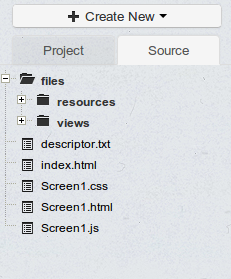
New Source view

As we continue to make Appery.io Platform enterprise-level, just just added a Source view where you can see and open the actual files behind your app. Right now the files are opened as read-only but we are working on allowing you to modify them as well.

source

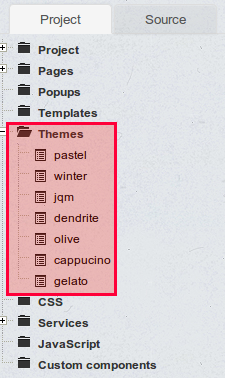
jQuery Mobile themes

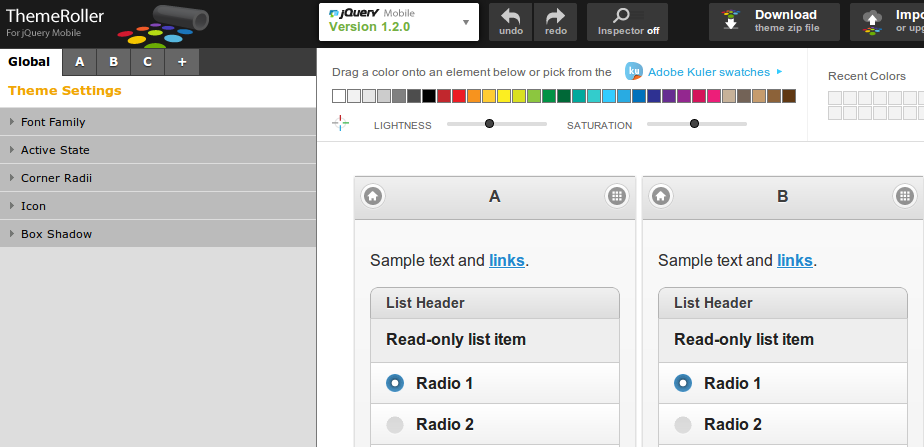
We got all our custom themes back and you can also create new themes using the jQuery Mobile ThemeRoller tool. Simply create your theme in the tool, download and then upload to Appery.io. It’s that simple.

themes

jQuery Mobile ThemeRoller site:

themeroller

Once you create a new theme, select Create New > Theme and upload the theme you created.

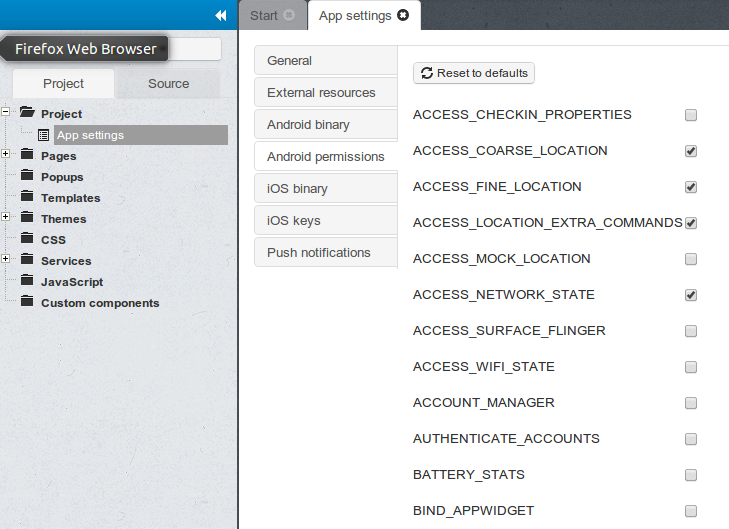
Android permissions

You have been asking for this feature and now it’s here. Customize the permissions for your app before building a binary.

permissions

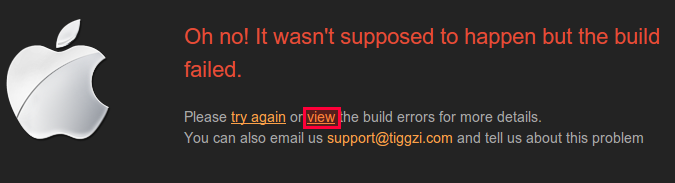
Binary build errors log

You no longer need to email support to find out why the binary build failed. You can now view the error and try to fix it:

buildfailed

New UI components

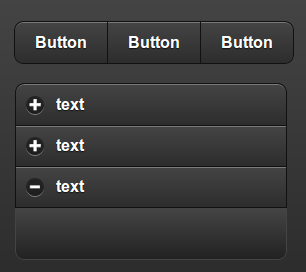
We added two new jQuery Mobile components, Grouped Buttons and Collapsible Set:

newcomponents

Pointer and Array types in database

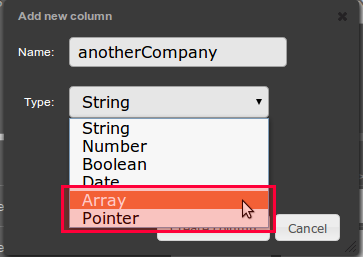
On the Backend Services side, we added two new data types to the database: Array and Pointer:

newdatatype

New tutorials and getting help

Don’t forget to check our new tutorials and as always, if you have any questions let us know via email, forum or @apperyio.


New AT&T OAuth API Plug-in To Make it Easy to Build Apps with AT&T API

To make it easy to build apps with AT&T API, we just added the AT&T OAuth API Plug-in. The plug-in sets up the OAuth 2 authentication by returning an access token which then can be used to invoke any other AT&T API.

To import the plug-in, select Create New > From Plug-in > ATT OAuth API:

Selection_926

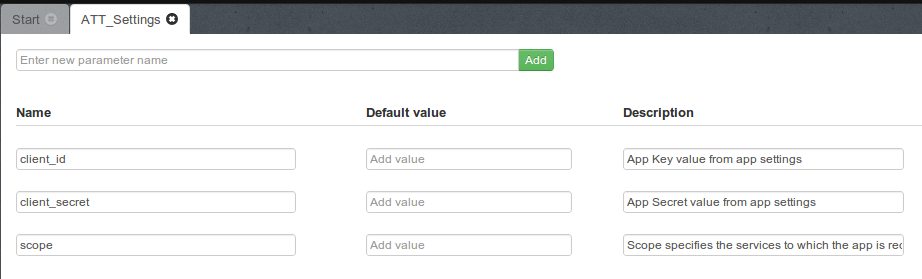
Once the plug-in is imported, open ATT_Settings file:

Selection_927

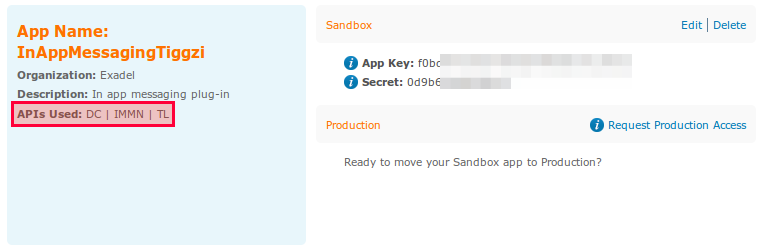
and set the client_it, client_secret, and scope. The client_id, and client_secret will be available once you register an app at http://developer.att.com. The scope value depends on the API you are going to use. For example, if you the Location API, it will be TL. Refer to docs for the correct scope for each API.

Here is an example of a registered app with three scopes (in red):

Selection_928

One more thing that needs to be set is the OAuth 2 redirect (or callback URL) in app settings

Selection_929

For the callback URL to work correctly, also do the following in the Test window (upper right):

  1. Uncheck Open in mobile frame
  2. Make the app pulbic

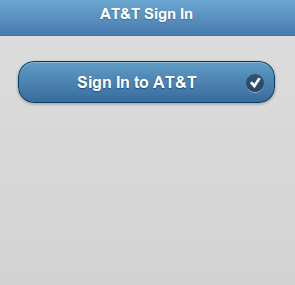
When running the app and you are not signed in into AT&T, you will see this page:

Selection_931

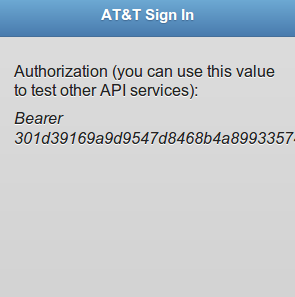
when signed in, you will see the access token:

Selection_930

The access token is also stored into local storage so you can use it to invoke other AT&T APIs.

Send Mesages with New AT&T In App Messaging API Plug-in

Webinar: Building Windows 8 Apps with Appery.io Platform

Join Max Katz, Appery.io developer evangelist, for this quick review of how to build a Windows 8 app using the Appery.io app builder. Then, in an expanded Q&A session, Max will hold “office hours” to answer any questions you might have about Appery.io.

When: Thursday, January 17, 2013 11:00 AM – 12:00 PM PST
Register: https://www1.gotomeeting.com/register/214517057

Get Access to the Entire Best Buy product catalog with New Appery.io Plug-in and Sample App

Best Buy Products API and Sample App plug-in provides a simple, REST-based interface for entire product catalog – past and present. This includes pricing, availability, specifications, descriptions, and images for over a million current and historical products.

Adding the plug-in to your app

To add the Best Buy Products API and Sample App plug-in, from Appery.io builder, select Create New > From Plug-in. Open Shopping, then select Best Buy Products API and Sample App:

bb006

Click Import selected plug-ins. The plug-in will be imported and you will see all its files in the Project view:

bb001

Before you run the app, we need to enter the Best Buy API key. Open Services/BestBuy_Settings file and enter your API key:
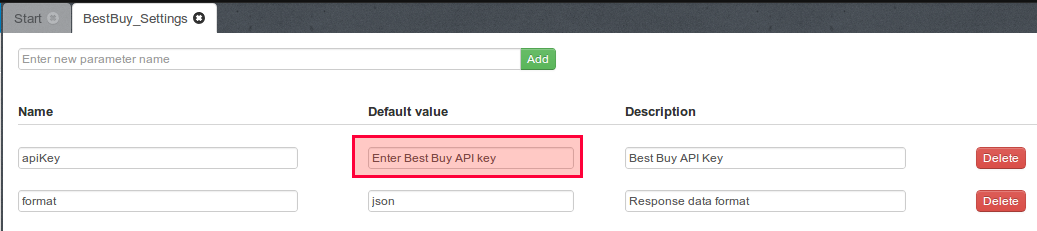
Selection_873

If you don’t have an API key, get it from Best Buy.

You should also go to Project/App settings, set the Start Page to BestBuy_Category_List, set the theme to BestBuy_Theme and check the Render all pages in one HTML file checkbox.

bb012

Running the sample app

You can now launch the app by clicking the Test button (in the upper right corner).

The starting page of app contains the list of categories as shown below:

bb013

Click any category button. The list of the products from the category opens on the Products page:

bb014

Click any product to get the product details. The page renders the image preview to the item and the available attributes as shown below:

bb015

You can also perform a search by entering a query in the text input at the top and pressing the search button.

REST API services used in the plug-in

Now that we’ve seen how this sample app works, let’s dig deeper to see how the Best Buy Products API is exposed in Appery.io platform.

The following REST services are used for getting information from Best Buy Products API:

BestBuy_GetProductsService service is used for getting the list of required products. REST service Settings display the URL, and other settings:

Selection_880

The {searchQuery} will be set when the app is running, based on user input.

Request tab shows the request parameters defined in the service:

Selection_881

Response parameters are automatically created after doing a service test (in Test tab):

Selection_882


Response parameter:

Selection_883

All other services are set in the same way.

Once a service is added to the page, it is then mapped to the page (request and response):
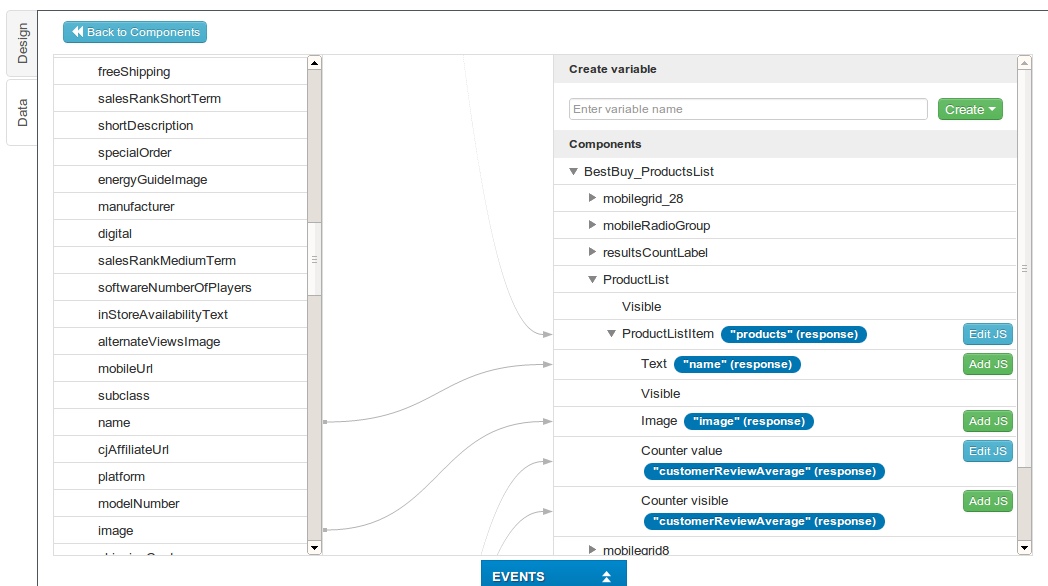
Selection_884


Search, Review, and Compare Prices with Aetna GoodRx API and Sample App Appery.io Plug-in

This post is is in the process of being updated for a more current version of the Aetna API.

How the plug-in works

Aetna GoodRx API and Sample App plug-in can be instantly added to any new or existing app. Aetna GoodRx is offering RESTful services that help to find the lowest retail cash price as offered by a national chain pharmacy for a given pharmaceutical. In addition, user will receive a URL for each result that will navigate to the page in the GoodRx mobile web experience that will display the pharmacy that is offering that price, and even find the closest branch to on their current location.

The ready-to-run app makes it super easy to start using the API. To add Aetna GoodRx plug-in:

  1. From Appery.io builder, select Create New -> From Plug-in
  2. Open Healthcare, then select Aetna GoodRx API and Sample App

grx001

After importing the plugin, set the default page to GoodRx_SearchPage, set the theme to GoodRx_Theme and check the Render all pages in one HTML file checkbox.

Using GoodRx API requires an API key which you can get from http://developer.carepass.com. To enter the API key, open Services/Aetna_GoodRx_Settings file:

Selection_836

Once the API key is set, click the Test button (upper right corner) to launch the app in the browser. The start page looks like this:

grx002

The page contains the search attributes for drugs as follows:

  • Drug Name (open text field, required if National Drug Code Directory identifier field is empty)
    • For example: lipitor
  • Drug form (drop-down, optional).
    • Possible values:
      • Tablet
      • Capsule
      • Injectable
      • Liquid
  • Dosage in mg (optional, requires digits)
    • For example: 10
  • Quantity (optional, requires digits)
    • For example: 30
  • Manufacturer Type (drop-down, optional)
    • Possible values:
      • Brand
      • Generic
  • National Drug Code Directory identifier (open text field, required if Drug Name is empty)

To test the app, you should enter some search parameters. For example, let’s enter “lipitor” in the “Drug Name” field. If you click the Search button then, you’ll see the screen with the search results:

grx003

If you click the Go to website button, you will be redirected to GoodRx desktop website or mobile website (if you launch the app on a mobile device).

grx004

The page shows information about the drug as well as information where it can be purchased.

Inside the plug-in

Now that we’ve seen how this sample app works, let’s dig deeper to see how the GoodRx API is exposed on the Appery.io platform.

GoodRx_LowPriceSearch service

GoodRx_LowPriceSearch is used for getting the list of the lower prices of the requested drugs. The URL and the main settings of the service as shown below:

grx005

If you open the Request tab, you’ll see that only the apikey parameter is defined here. The reason for this is that the service can receive different sets of parameters, so all the other required parameters are added dynamically in Javascript Helper.search() function before service invocation.

grx006

The response parameters are displayed under the Response tab:

grx007

GoodRx_Settings service

This service holds the API key. It is used in GoodRx_LowPriceSearch service.

grx008