Wireframing Tool Review: Appery.io
Appery.io review The Pam: Wireframing Tool Review: Appery.io

Appery.io review The Pam: Wireframing Tool Review: Appery.io
What makes Appery.io different from other tools that just let you export a picture is that you can create real and interactive HTML. Every component in Appery.io (and we are going to add more) comes with properties to configure the component. Of course when you preview the prototype in web browser, whatever properties you set will be generated in HTML. You go from a prototype to an HTML prototype – which is really very close the actual application UI.
Let’s take one of the most popular components in Appery.io, the button, and see what properties you can work with.
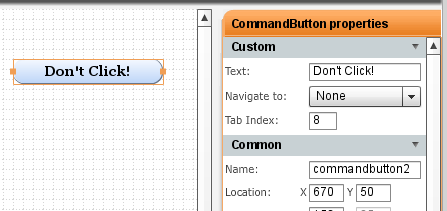
You can set the button label (that’s kind of obvious). Appery.io prototypes are interactive and let you define navigation between pages. When running in web browser, you will navigate between pages. If you have multiple screens, you can set navigation like this:
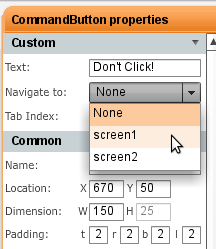
Tab Index allows you to set the tab index order when you preview the prototype in the browser and use the Tab key to navigate the input components.
Scrolling farther in properties, you will see other properties you can set shown below. As you can see, you can set everything from padding, margins to standard formatting such as font face, color, size and style. The very last property allows you to set round corners.
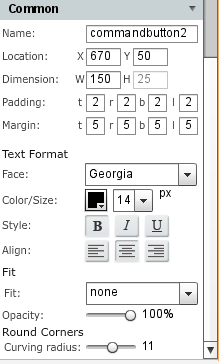
Having all the properties is very powerful as you can create real interactive HTML prototypes with actions and events and not just static images. We soon we are going to expand action and events. You will be able to build even more interactive prototypes.
UI prototyping is great and quick way to start your UI requirements. Getting a picture of how the UI looks is much better then trying to describe UI requirements in a text document.
But, it would be even better if you could describe the UI behavior in a prototype. This would make the prototype interactive where you could select menus, change tabs and navigate between pages. This prototypes (shoes) the actual UI logic in the real application. Pretty cool, right?
Lastly, what if you could export prototype HTML, share it or even use it as a starting point for the UI.
You can do all with Appery.io. Appery.io is a Web-based tool for creating, sharing and viewing interactive Web and mobile HTML prototypes. Appery.io allows you to do rapid prototyping, it allows you to create interactive prototypes where you can switch tabs, create navigation between pages (more actions/events are coming soon). And lastly, you can also export prototype HTML. Let me show you how do to that.
There are two ways to do it. First, you can view and share the prototype in a browser. Second, you can export (save) the prototype HTML, JavaScript and CSS.
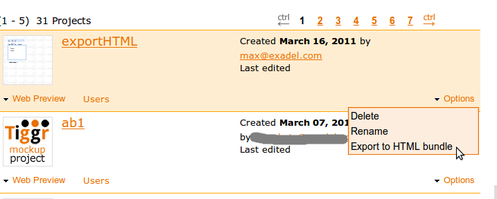
To view the prototype in a Web browser, select Web Preview/Open. A browser window will open and you will see the prototype (make sure to allow pop-ups for *.appery.io) Note that by default only you can view the prototype URL.
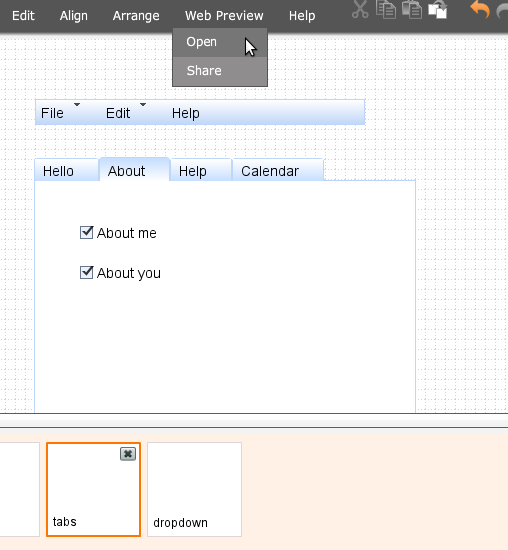
If you want to share the prototype, inside the editor, select Web Preview/Share and select Anybody can view this prototype on the Web. That’s it. You can now share or send the URL and anyone will be able to view it in any browser. You can also perform this in Projects page.
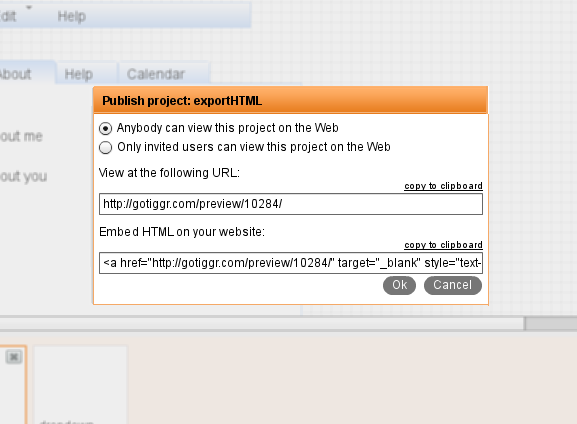
To export (save) the prototype HTML, JavaScript and CSS, in Projects page, select Options/Export to HTML bundle. You will be prompted to save a zip file containing all the HTML, JavaScript and CSS files. You can run it locally, share the zip file, or use it as a starting point for application UI.
Top 3 FREE Wireframing and Mockup Tools – Lumzy, Mockup Builder and Appery.io Compared and Reviewed
The state of Mobile Web development today is probably what was traditional Web back in 1996. Many companies is racing to create mobile presence, be it in the form of a native applications or mobile Web applications. To set the native vs Web debate a side for now, there is a tool to help you prototype and test your mobile Web applications. You can even use the resulting HTML as a starting point for the application. The prototyping tool is Appery.io. With Appery.io, you can create, share and preview interactive Web and mobile HTML prototypes in a browser. Read more.
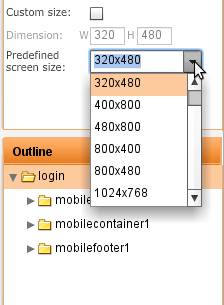
Creating Web and mobile interactive HTML prototypes in Appery.io is simple. But what about the iPad (and other tablets)? Well, turns out it’s pretty simple as well. All you need to do is change the prototype screen size to iPad’s (1024×768):
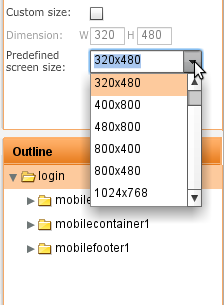
To start your prototype for iPad, don’t forget to switch Screen Type to Mobile.
From JavaLobby: 10 Features You Need When Creating Interactive HTML Prototypes
Another Appery.io review: English version [original Russian version]
Today we released Appery.io version 1.2.6 with numerous features and enhancements. Behind the scenes, we made the editor more stable and faster. We think you will really like what we have in this release.
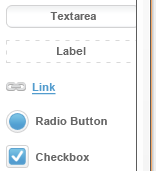
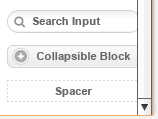
New link and spacer mobile controls to make it simpler to build mobile prototypes:
 |
 |
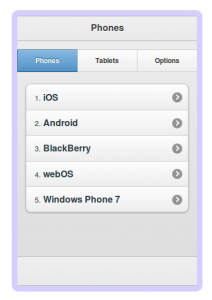
Mobile preview now shows the prototype within the actual screen size you defined in properties:
Select a predefined size or set a custom one:
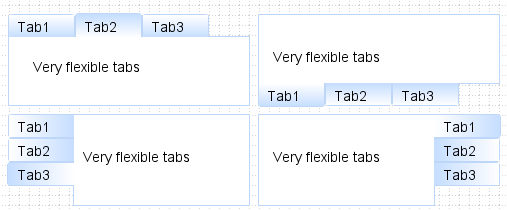
Tabs layout container got even more flexible. In addition to positioning the tabs at the top or bottom, you can also now position tabs on left or right:
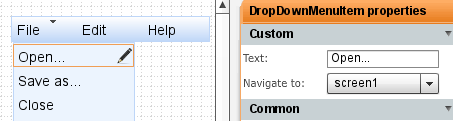
It was possible to navigate between pages using a link, button or an image but somehow we missed the menu. Well, it’s now possible to navigate via menu as well. Drag and drop a menu into a page and head to properties to set navigation:
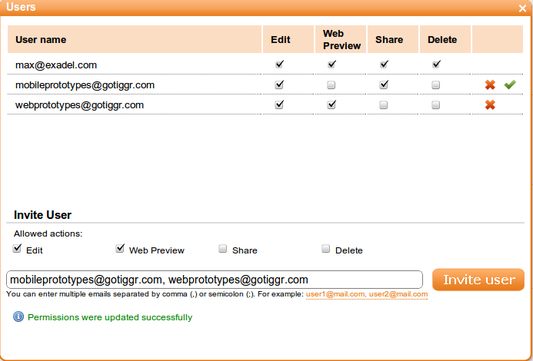
If you shared a project before, the user you shared with had full access to the project, he or she could edit, delete, preview and invite others to share. Starting with this release, you can control what permissions each user has. And, you can invite multiple users at once, just separate emails with a comma or semicolon.
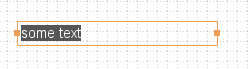
When you insert a new component, the component is inserted in edit mode automatically, so it’s easier to edit (no longer need to double click to enter edit mode):
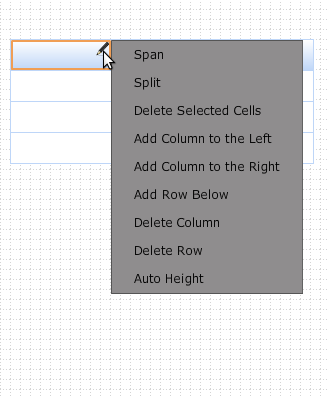
Let’s just say editing a grid or table row/column wasn’t the simplest task to do. Luckily, we made it much simpler. Just click the edit icon (pencil) in a column and select your action. That’s it. You can also edit rows/columns in properties.
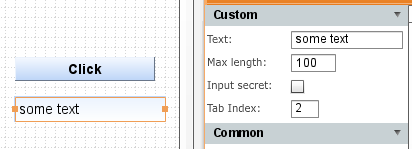
When viewing a prototype in a Web browser, it’s important to be able to test how tabbing works on input components. When creating a prototype, it’s now possible to set a tab index for input components:
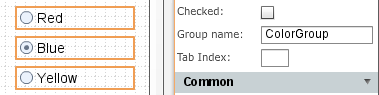
Creating a radio button group was some what tricky (had to place the buttons inside a container). You don’t have to do it any more. A new property allows you to include any number of radio buttons in a separate group:
We hope you will never do, but if you really really have to, you can now delete your Appery.io account by going to My Account (just in case, you will have 2 weeks to reactivate it). [User requested].
As always, let us know what you think and what features you would like to see: http://getsatisfaction.com/apperyio. Don’t forget to follow Appery.io on Twitter (@apperyio).
TheServerSide.com: Why You Need Interactive and Clickable UI Prototypes for Your Next Project