Introducing Our New Starter App Template for Your Mobile App

We’re excited to present our latest creation: the Starter App Template. It’s built to be the strong base for making modern mobile apps that users will love.

Starter App Template: Main Features

  • Flexible Design: Works smoothly on all devices for a great user experience.

  • Easy Logins: Choose between traditional or FaceID/Fingerprint logins for security and convenience.

  • Simple Sign-Up: Quick feedback on usernames and passwords to get started easily.

  • Password Recovery: Easy steps to recover access if needed.

  • User Control: Customize settings and privacy to match individual preferences.

  • Language Choices: Supports multiple languages for a global audience.

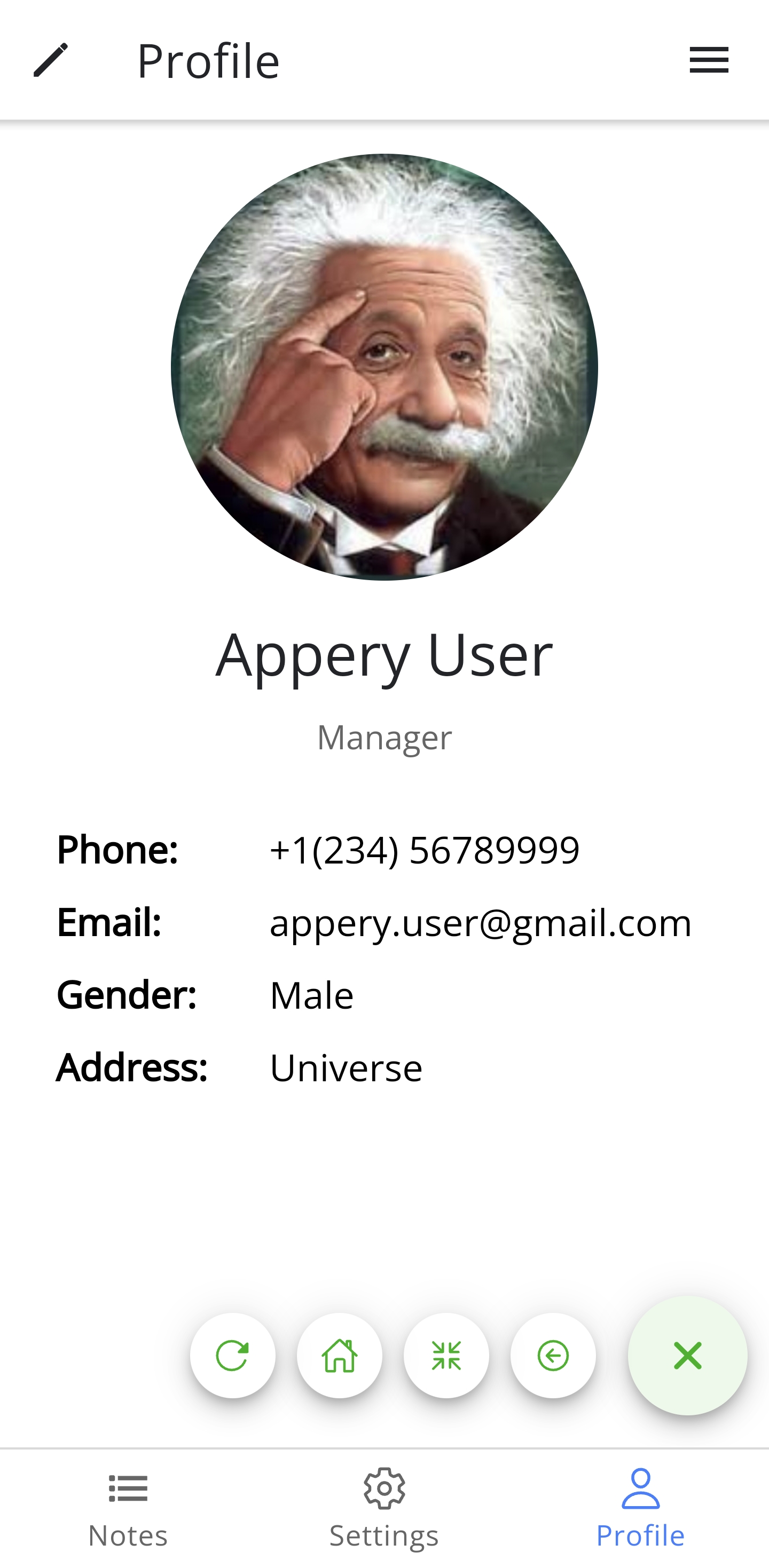
  • Personalized Profiles: Users can create and edit profiles for a tailored experience.

  • Dark Mode: A comfortable theme option for low-light settings.

  • Secure Confirmation: Double verification via email or SMS for added security.
Who Can Benefit?

This template suits startups and businesses in social networking, e-commerce, health & fitness, education, and more. It’s perfect whether you’re starting big or testing ideas.

Start Building Today

Ready to transform your app development? Explore the Starter App Template now! Create a strong foundation and focus on what users need most.

Don’t miss out—embrace innovation and enhance your mobile app experience with our Starter App template tutorial.

Stay tuned for updates and added features as we continue to improve this template!

Ready to begin?
How to Update Your Appery App on Google Play

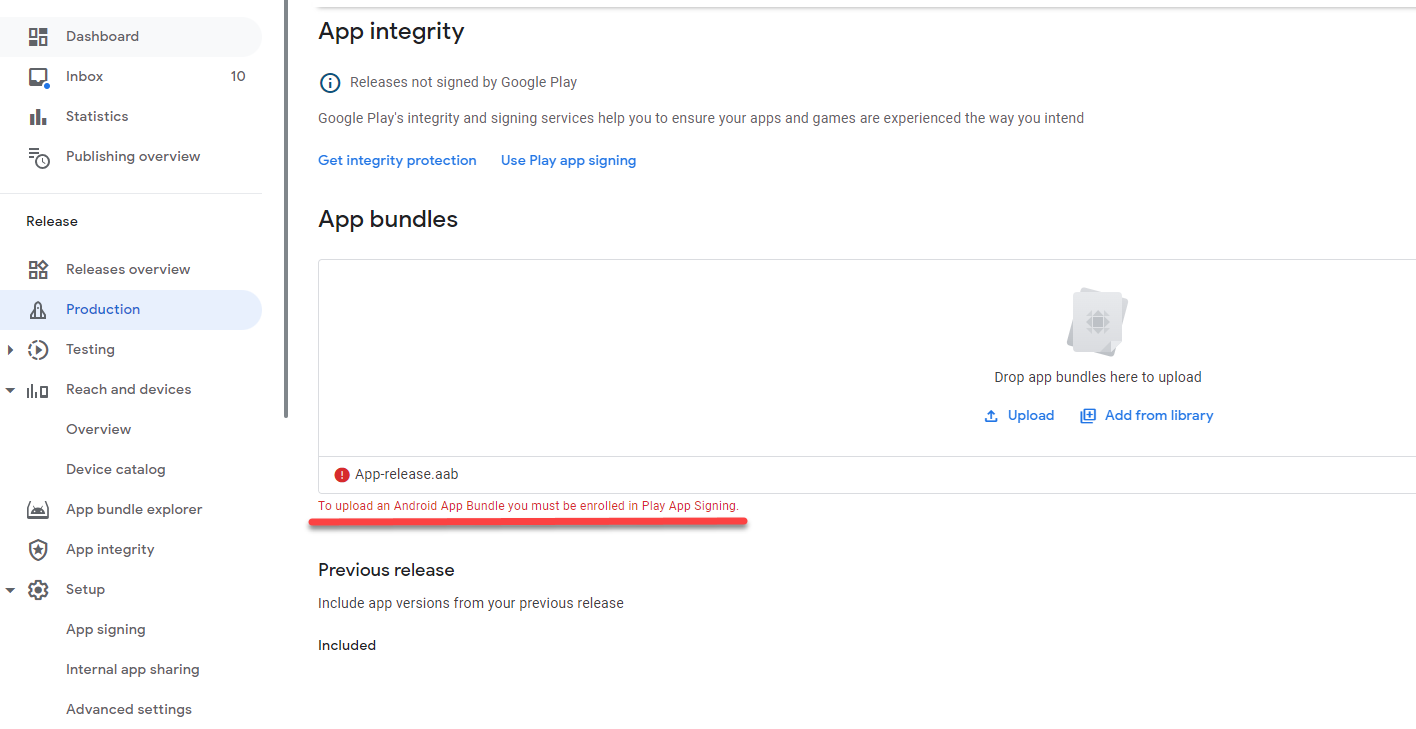
Some Appery.io users who generated an .aab file with Appery.io and are trying to upload this to Google Play store as an update, may encounter this error:

Before we help you tackle this issue, here is a bit of theory behind it:

As of August 2021, there has been a significant shift in the deployment process for developers targeting the Google Play platform. The conventional .apk (Android Package) format, which has been the standard for Android applications, is no longer accepted by the Google Play store for publishing new apps. In its place, Google has mandated the use of the Android App Bundle (.aab) for all new apps, a publishing format that streamlines the app signing process for developers.

This transition to the .aab format can have direct implications if you’re attempting to update your existing Appery.io app on Google Play that was originally published using an .apk file. 

Below, we share some simple steps you can take to address the issue of updating your existing Appery.io app on Google Play:

  1. Begin by downloading the certificate archive and extracting it.
  2. Afterwards, navigate to the Google Play Developer Console and proceed to Release > Setup > App Signing. If necessary, agree to the Terms of Service for App Signing.
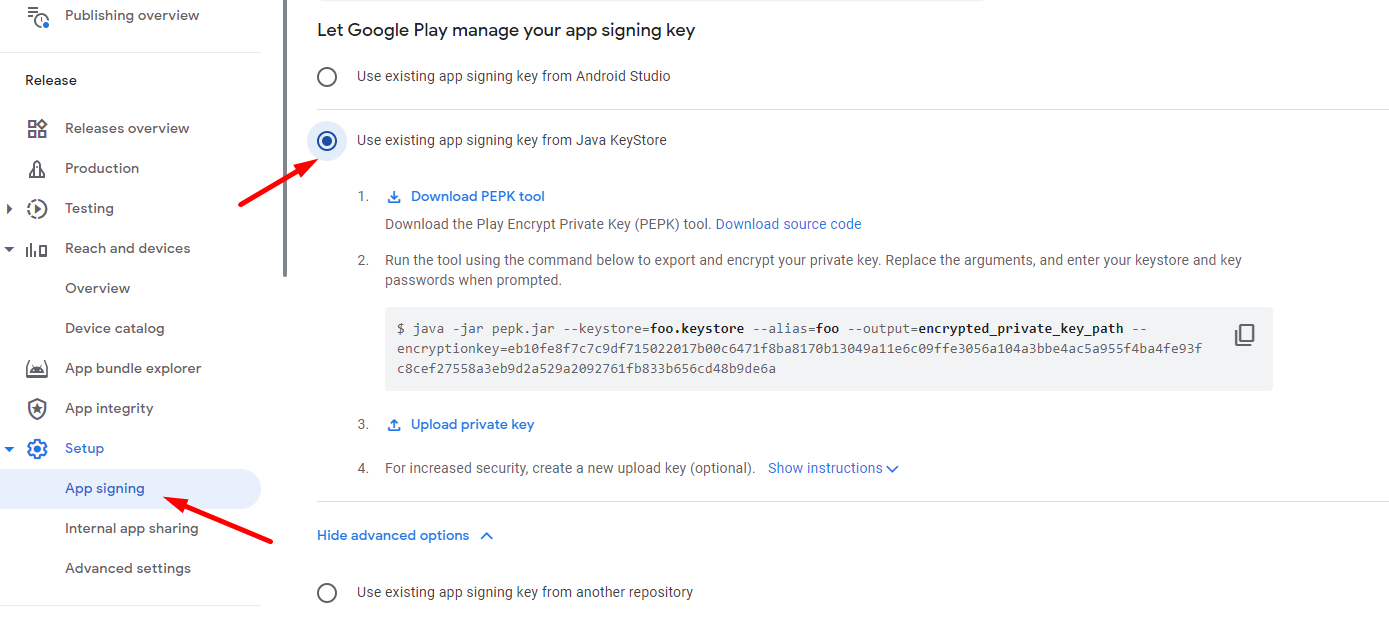
  3. Choose the option Use existing app signing key from Java KeyStore, then follow the subsequent steps:

4. Obtain the PEPK tool and launch a terminal window.

5. Enter the command as follows, replacing the placeholders with your actual file paths, alias, and Google encryption key:

java -jar PATH_TO_PEPK_TOOL --keystore=PATH_TO_YOUR_KEYSTORE --alias=YOUR_ALIAS --output=PATH_TO_YOUR_OUTPUT_FILE --encryptionkey=YOUR_GOOGLE_ENCRYPTION_KEY

✋ Caution: Ensure the accuracy of the paths for the PEPK tool, keystore, output file, as well as the correct alias and Google encryption key.

For instance, if your setup has the specified names, your command might look like the following:

java -jar pepk.jar --keystore=apperyio.project --alias=apperyio.project --output=encrypted_private_key_path --encryptionkey=eb10fe8f7c7c9df715022017b00c6471f8ba8170b13049a11e6c09ffe3056a104a3bbe4ac5a955f4ba4fe93fc8cef27558a3eb9d2a529a2092761fb833b656cd48b9de6a

6. At this moment, the system will prompt you for a password. It is advisable to reuse your current keystore password. So, input the keystore password (for instance, ‘apperyio.project‘) followed by the key password (again, potentially ‘apperyio.project’).

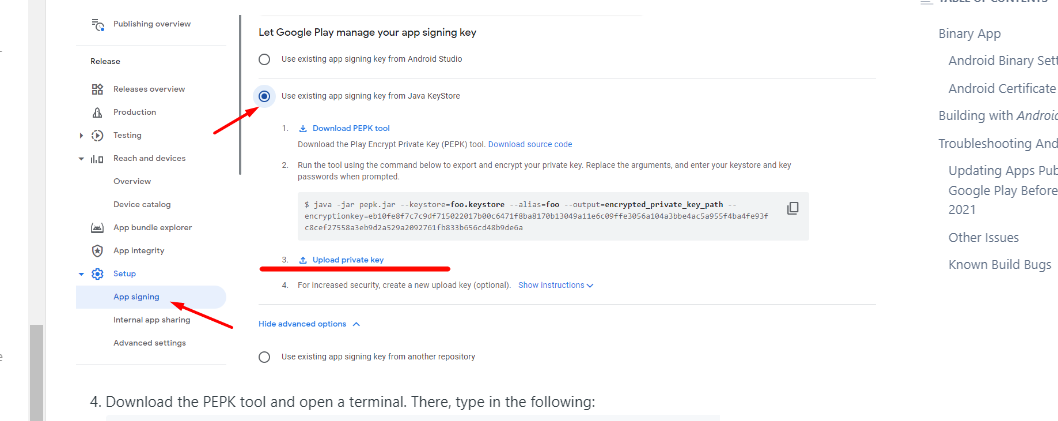
7. With your passwords entered, you can now upload the generated App Bundle (.aab) file to Google Play by clicking Upload private key:

8. Finally, click Save.

Congratulations: your updated app is up and running!

Happy Tnanksgiving from all of us, at Appery.io!